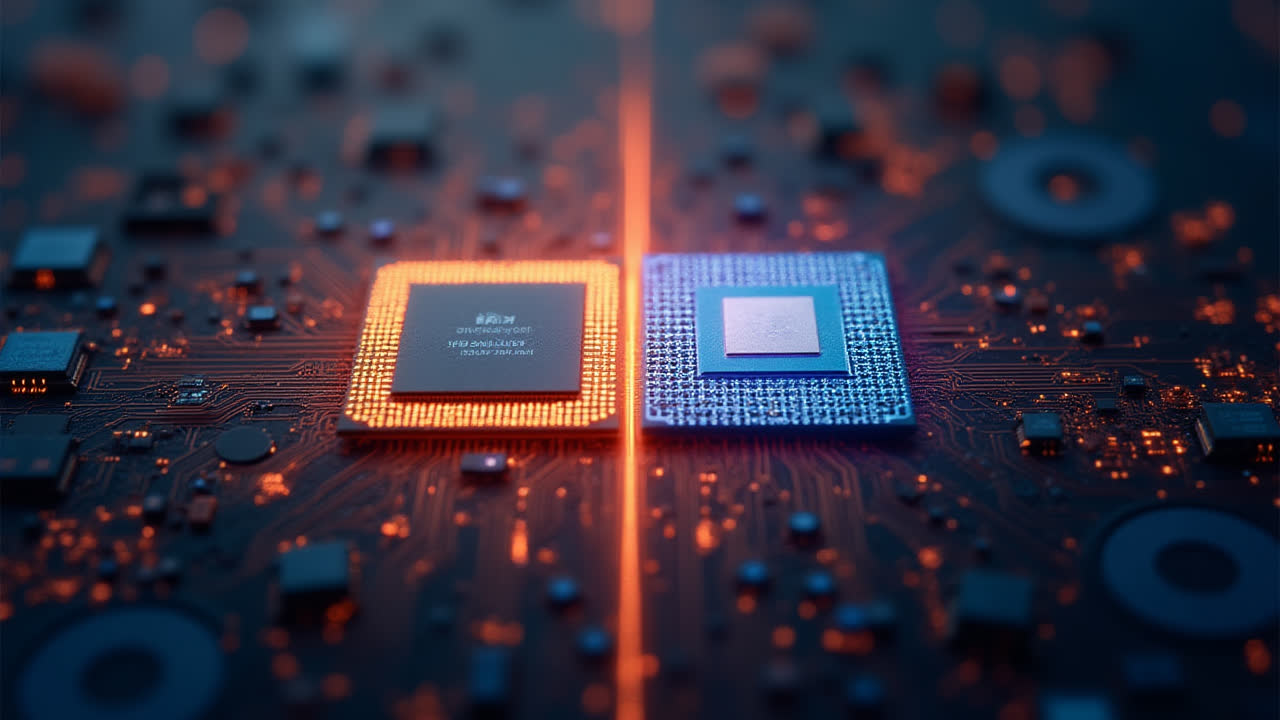
FTP vs SFTP: Understanding the Key Differences in File Transfer Protocols
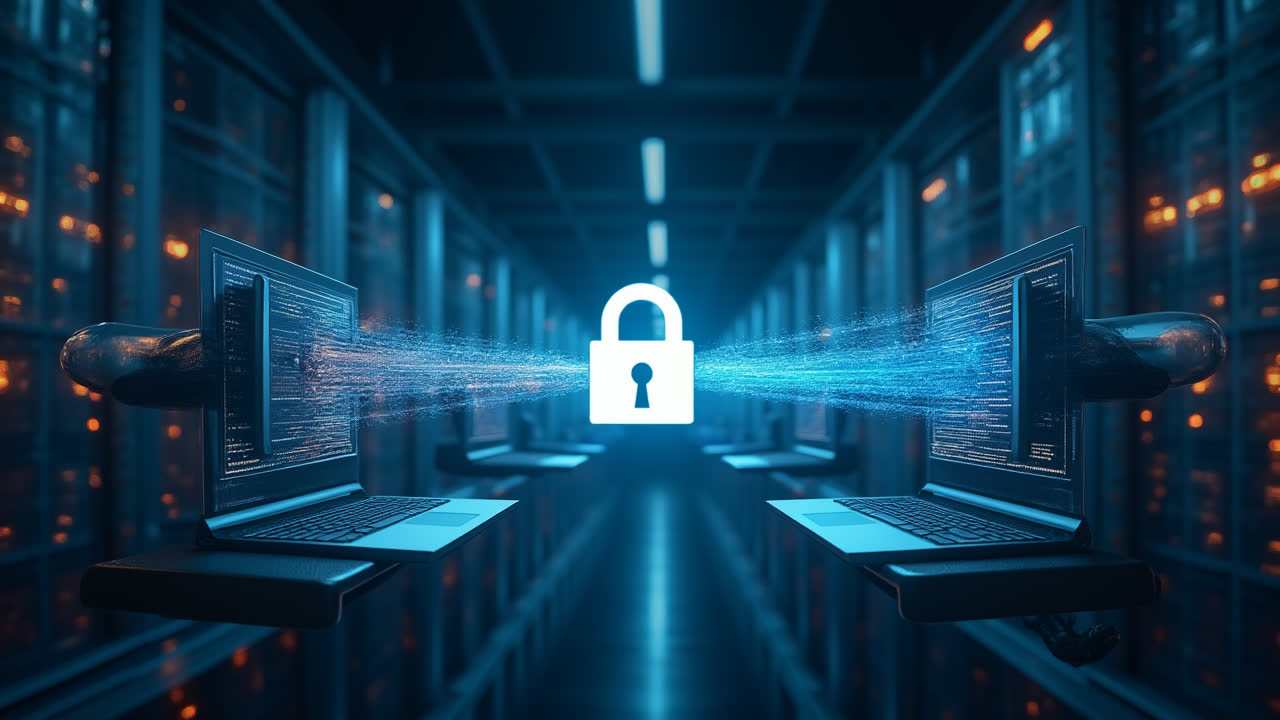
FTP vs SFTP: Understanding the Key Differences in File Transfer Protocols
When it comes to transferring files over networks, two protocols often come up in discussions: FTP and SFTP. While their names might sound similar, and you might wonder if they're just variations of the same thing, these protocols are fundamentally different in their approach to file security. In the digital age where data breaches happen almost daily (I just read about another one this morning), understanding which protocol to use isn't just technical jargon—it's about protecting your valuable data.
What Exactly is FTP?
File Transfer Protocol, or FTP, has been around since the early days of the internet. Think of it as the grandparent of file transfer methods—it's reliable, straightforward, but not exactly up to date with modern security practices. When you use FTP, all your data travels in plain text, kind of like sending a postcard where anyone can read the contents.
I still remember using command-line FTP back in the early 2000s. It was pretty intimidating at first, but it got the job done. Today's FTP has evolved with graphical interfaces that make it more user-friendly, but the core security issues remain. It's like putting a fresh coat of paint on an old house—it looks better, but the foundation hasn't changed.
FTP connects through port 21 and requires simple authentication. It's widely supported across various platforms, from desktop computers to mobile devices. Many HTML editors still use it internally for website updates. However, here's the catch: since everything travels in plain text, including your username and password, anyone who intercepts your connection can see everything.
The protocol works by establishing two separate connections—one for commands and another for data transfer. This dual-channel approach can sometimes complicate firewall configurations, which is something I've had to deal with more times than I'd like to admit. But its simplicity is also its strength, making it easy to implement and troubleshoot when things go wrong.
Understanding SFTP: The Secure Alternative
SSH File Transfer Protocol, or SFTP, is like FTP's security-conscious cousin who graduated from cybersecurity school. Unlike regular FTP, SFTP encrypts both your data and your login credentials. It's like sealing your documents in an envelope before sending them—only the intended recipient can open and read them.
SFTP is built on top of SSH (Secure Shell) protocol version 2.0, which means it inherits all of SSH's robust security features. When I switched from FTP to SFTP for client projects a few years ago, the peace of mind was incredible. No more worrying about credentials being intercepted or sensitive data being exposed during transfer.
One thing that initially confused me about SFTP was its name. Despite having "FTP" in its name, it's not just a secure version of FTP—it's an entirely different protocol. It uses a single encrypted connection for both commands and data, making it simpler to configure through firewalls. This is a huge advantage when working with strict corporate networks.
The protocol was designed by the Internet Engineering Task Force (IETF) with security as the primary concern. It doesn't just transfer files; it provides file management capabilities too. You can create directories, delete files, and change permissions—all while maintaining end-to-end encryption. It's like having a secure remote desktop for file operations.
| Feature | FTP | SFTP |
|---|---|---|
| Security Level | No encryption - Plain text transfer | Full encryption of data and credentials |
| Port Used | Port 21 (command), Port 20 (data) | Port 22 (single encrypted channel) |
| Protocol Type | TCP/IP based protocol | SSH-based protocol |
| Connection Method | Two separate connections (command & data) | Single secure connection |
| Authentication | Username & password in plain text | Encrypted username & password |
| Firewall Handling | Complex due to multiple ports | Simpler with single port |
| File Management | Basic file transfer only | File management + transfer capabilities |
| Standard Compliance | Legacy protocol (RFC 959) | Modern protocol (RFC 4253) |
Key Security Differences That Matter
The most striking difference between these protocols is security—or the lack thereof with FTP. When you're transferring sensitive business documents, customer information, or financial data, using FTP is like leaving your front door wide open. I learned this the hard way when a client's login credentials were intercepted during an FTP session. Thankfully, it wasn't business-critical data, but it was a wake-up call.
SFTP encrypts everything: your username, password, and all data transferred. This encryption happens before the data leaves your computer and continues until it reaches its destination. It's not just about hiding passwords—it's about protecting your intellectual property, client data, and business operations. Think about it: would you be comfortable with competitors reading your project files?
The encryption in SFTP isn't just for show. It uses industry-standard algorithms like AES (Advanced Encryption Standard) and RSA. These are the same encryption methods banks use for online transactions. When I explain this to clients who are hesitant about switching from FTP, this comparison usually convinces them.
Another security advantage of SFTP is its resistance to common network attacks. FTP is vulnerable to packet sniffing, man-in-the-middle attacks, and password interception. SFTP's encrypted tunnel prevents these threats. It's like having a secure messaging app versus sending SMS texts—the difference in protection is night and day.
When to Use Each Protocol
Despite SFTP's obvious security advantages, there are still scenarios where FTP might be acceptable. For example, when transferring non-sensitive public files within a completely isolated network, FTP's simplicity can be beneficial. I've used it in testing environments where speed matters more than security. But honestly, these cases are becoming increasingly rare.
For any real-world application involving sensitive data, SFTP should be your default choice. This includes business documents, customer databases, financial records, or any information you wouldn't want publicly accessible. In my consulting work, I always recommend SFTP for production environments. The small learning curve is worth the peace of mind.
Some legacy systems still only support FTP, and that's where things get tricky. I've encountered situations where clients had no choice but to continue using FTP with certain vendors. In these cases, we implemented VPN tunnels to add an extra layer of security. But this is essentially a workaround—the proper solution is always to migrate to SFTP.
Modern cloud services and hosting providers predominantly support SFTP, making it easier than ever to switch. Many of them are gradually phasing out FTP support altogether. It's worth checking with your providers to ensure they offer SFTP—if they don't, it might be time to consider switching providers.
Performance and Compatibility Considerations
A common misconception is that encryption in SFTP significantly slows down file transfers. In my experience, the difference is negligible for most applications. Modern processors handle encryption so efficiently that you're unlikely to notice any slowdown unless you're transferring massive files on older hardware.
Compatibility has improved dramatically over the years. Most FTP clients now support SFTP, and many default to it automatically. Popular tools like FileZilla, WinSCP, and even command-line utilities have excellent SFTP support. I rarely encounter compatibility issues anymore, which wasn't the case a decade ago.
One area where FTP might have a slight edge is in extremely simple, bare-bones implementations. Some embedded systems and IoT devices still use FTP because it requires less processing power. However, this is changing rapidly as security becomes mandatory even for these devices. The industry is moving toward secure-by-default approaches.
Network administrators often prefer SFTP because it simplifies firewall configuration. With FTP's dual-port system, you need to open multiple ports and handle active versus passive modes. SFTP's single-port approach makes firewall rules straightforward. Less complexity means fewer potential security holes—a win for everyone involved.
Making the Switch: Practical Tips
If you're still using FTP and wondering how to switch to SFTP, the process is usually straightforward. Most hosting providers offer both options, and switching often requires just changing a setting in your FTP client. The connection details remain similar—you just change the protocol from FTP to SFTP.
Training your team is crucial during the transition. I always emphasize three key points: SFTP uses port 22 (not 21), you might need to accept a host key on first connection, and connection establishment might take slightly longer due to the encryption handshake. These small differences can prevent frustration during the switch.
For automated scripts that use FTP, updating to SFTP might require minor adjustments. Most programming languages have excellent SFTP libraries that are just as easy to use as FTP ones. I've helped several clients convert their automated backup scripts from FTP to SFTP, and the code changes were minimal.
Consider implementing a gradual transition if your organization relies heavily on FTP. Start with non-critical systems and gradually move sensitive operations to SFTP. This approach helps identify any compatibility issues before they impact critical business processes. It's better to be careful than to rush and encounter unexpected problems.
Future of File Transfer Protocols
The writing's on the wall for plain FTP. Many modern compliance standards and security frameworks explicitly require encrypted file transfers. GDPR, HIPAA, and PCI DSS all emphasize data protection during transmission. Using FTP for sensitive data could put organizations at risk of compliance violations.
We're already seeing innovations building on SFTP's foundation. Protocols like SCP (Secure Copy) and rsync over SSH offer even more specialized file transfer capabilities. Some organizations are moving toward API-based file transfers using HTTPS, which provides similar security benefits with different implementation approaches.
The trend is clear: security is no longer optional in file transfers. As cyber threats evolve, protocols must evolve too. SFTP represents the current standard, but I expect we'll see continued innovation in secure file transfer methods. The key principle will remain the same—never send sensitive data in plain text.
For anyone starting a new project or system today, the choice is simple: use SFTP. The days of justifying FTP for "simplicity" are over. Modern tools make SFTP just as easy to implement and use, with the added benefit of actual security. It's an investment in protecting your data and maintaining trust with your clients or users.
Frequently Asked Questions
Is SFTP slower than FTP due to encryption?
Not noticeably in most cases. Modern processors handle encryption efficiently, and the security benefits far outweigh any minor performance differences. For typical file transfers, you won't see a significant speed difference between FTP and SFTP. Only in very large file transfers on older hardware might you notice a small performance impact.
Can I use the same FTP client software for SFTP?
Yes, most modern FTP clients support both protocols. Popular applications like FileZilla, WinSCP, and CuteFTP all handle SFTP connections. You typically just need to change the protocol setting from FTP to SFTP in the connection dialog. The interface and functionality remain largely the same.
Do I need special server software to enable SFTP?
Most modern servers include SFTP support through their SSH server installation. On Linux systems, OpenSSH is commonly used and includes SFTP capability by default. For Windows servers, you might need to install additional software like OpenSSH for Windows or specialized SFTP server applications. Many hosting providers offer SFTP support out of the box.